Already have a domain you want to use? You can connect it to your Holidu booking website and drive more direct bookings under your own brand. This guide explains how to connect your own domain to your Holidu booking website in six clear steps. The process takes about 15 to 20 minutes, plus a short wait for DNS changes to update.
What You Need Before You Start
Before you begin, make sure you have:
- Access to your domain provider's DNS settings (for example AWS, Vercel, GoDaddy, or another provider).
- Access to your Holidu account and the admin area where you manage your booking website.
Please note: If you already have a website live on that domain, it will be replaced by your direct booking website once this process is complete.
Step-by-Step Guide to Connecting Your Domain
Step 1: Start the Process in the Holidu App by Setting Up Your Booking Website
- Click Enable website if it is not enabled yet.
- Click Connect my domain.

- After you start the setup and enter your existing domain name, a DNS tab appears.
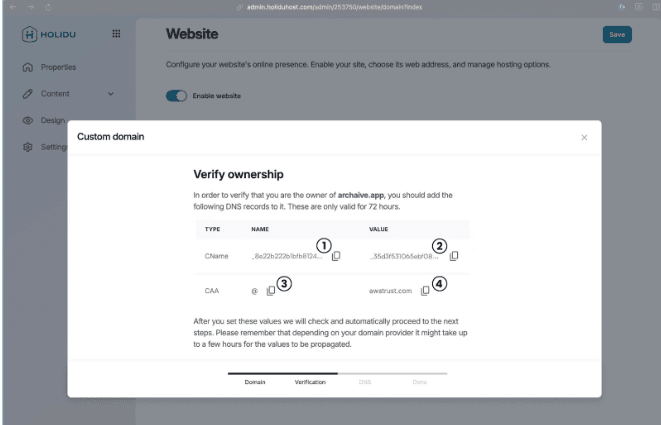
Holidu generates a few specific DNS values for you here. Copy these values and keep them handy. You will add them to your domain provider's settings in the next step.
Tip: Don't worry if you are not familiar with DNS settings. We will guide you through each step.
Step 2: Create a New CNAME Record in Your Domain Settings
Log in to your domain provider and look for an option to create a new record (or DNS record). A form will open.
- For Type, select CNAME.
- In the Holidu app, copy the NAME value from the CNAME line (1) and paste it into the name field of the record you want to create.
- Then copy the VALUE from the same line (2) and paste it into the value field of the record.
- The TTL and Routing policy fields can usually keep their pre-filled values.
After making these settings, create the record.
Example (AWS):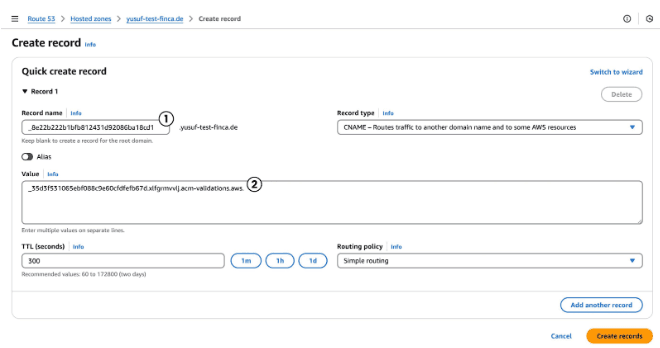
Important: If there are already records saved for the domain you want to use, delete those records first. This will disconnect your existing website from the domain, so it will no longer be accessible to guests. This step is necessary so you can connect the domain to your new direct booking website.
Step 3: Add a CAA DNS Record in Your Domain Settings
Create another record in your domain settings. This time:
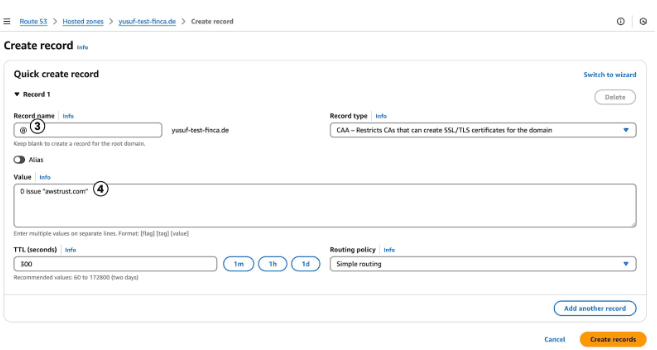
- For Type, select CAA.
- In the Holidu app, copy the NAME value from the CAA line (3) and paste it into the name field of the record.
- In the value field, paste the value you get from the Holidu app (4).
- Some providers require a special format for the value field, for example: 0 issue "awstrust.com". In this case, add the value (4) from the Holidu app inside quotation marks.
- The TTL and Routing policy fields can usually keep their pre-filled values.
After making these settings, create the record.
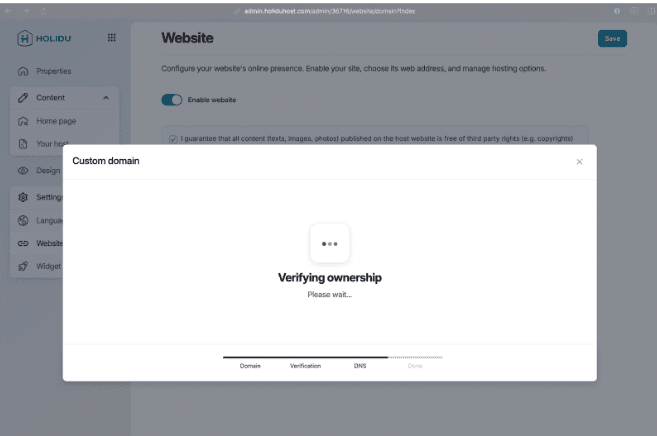
Step 4: Return to the Holidu App to Check That the Records Are Recognized
Once the records are in place, Holidu automatically checks your DNS settings. This usually takes around 5 minutes.
If everything looks good, your domain is verified and you will be guided to the final steps of the setup.
Step 5: Add an ALIAS DNS Record in Your Domain Settings
After Holidu verifies your domain, you need to add one more DNS record. Holidu provides the required values for this record.
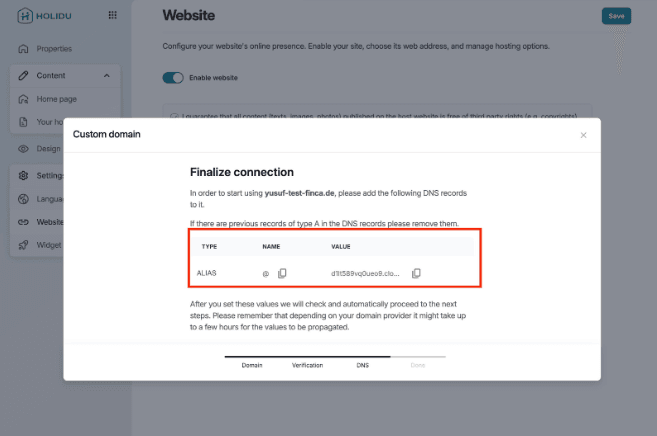
Create a new record and change the Type to ALIAS.
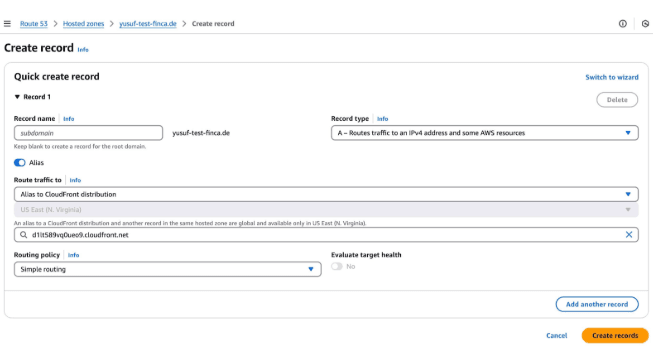
Before you move on, make sure your domain provider settings include all three of the following records:
- ALIAS
- CAA
- CNAME
All three records are needed for your direct booking website to connect properly.
Step 6: Final Verification
Return to the admin area in Holidu and wait until your domain shows as verified.
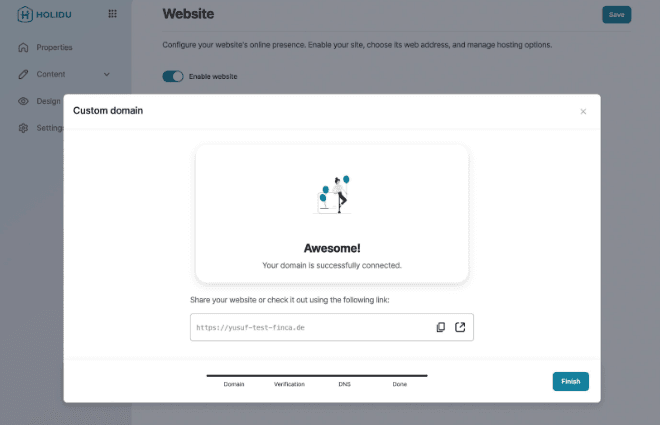
Congratulations! You can now access your direct booking website through your own domain.
Frequently Asked Questions
How long does it take for my domain to connect?
Holidu usually verifies your DNS records within about 5 minutes. DNS changes can sometimes take longer to update across the internet, so if verification does not complete right away, wait a little and check again.
Will my guests lose access to my old website?
Yes. When you delete the existing records for your domain, your old website will no longer be accessible through that domain. Your direct booking website will replace it once the setup is complete.
For more help with your booking website, visit the Holidu Help Center. If you need further assistance, our Customer Happiness Team is happy to help.
Do you want to contact us?
We’re here to help. You can contact us directly if you need assistance or have questions.
Contact us